Tuesday, October 19, 2010

How to display the top secret of Sony Ericsson mobile phones?

sivarama nityanandamurty     4:53 AM     No comments

Today tip is about the secret codes of Sony Ericsson mobile phones. These codes will work on most of the latest Sony Ericsson mobile sets.  You can display the hidden information of mobile sets and then troubleshoot the routine problems using these codes.
Sony Ericsson Useful Secret Codes
 
Code                                        Action 
0#                                  To display the last dial number
*#06#                             To display the IMEI Number of the mobile 
-> * <- <- * <- *                Use to display the secret menu of Sony mobile
<**<                               Use to display the information about mobile network
< 0 0 0 0 >                      Use to reset Sony Ericsson mobile default language
>*<<*<*                          Use to display the mobile software version
<0000>                           Use to reset Sony Ericsson mobile default theme
#                                    To display the SIM Number of the mobile
**04*0000*0000*0000#     You can access you mobile settings without SIM card
*#0000#                          Use to reset Sony Ericsson mobile English menu
904060 + >                     Use to reset mobile phone settings
904093 + menu               Use to display the CDMA Mode
On/off button                   Press and release quickly on/off button to verify the battery
                                    
status. > * > (>);                        To display the text contained in the phone

0 comments :

How to display the hidden settings of Samsung mobile phones?

sivarama nityanandamurty     4:47 AM     No comments

Today we will discuss about the some secret codes of Samsung mobiles. These codes may be not applied to all old models of Samsung mobile, but you can try to all latest Samsung mobiles. You can display the hidden information of mobile sets and troubleshoot the routine problems using these codes.
Follow the list of latest Samsung codes list:
Code                                        Action 
*#9999#                                Use to display the mobile software version 
#*3849#                                Use to reboot the Samsung handsets 
*#06#                                   To display the IMEI Number of the mobile 
#*2558#                                To on/off the mobile time 
#*7337#                                Use to unlock the latest Samsung set 
#*4760#                                Use to activate and deactivate the GSM features 
*#9998*246#                         To verify the memory and battery information 
*#7465625#                           To verify the Lock status of mobile  
*#0001#                                To display the Serial Number of the mobile 
*2767*637#                            Use to unlock the mobile code 
*#8999*636#                          To display the storage capacity of the mobile 
#*2562#                                 Use to reboot the Samsung handsets
*#8999*667#                           Use to run the mobile in Debug mode 
*2767*226372#                       To fine-tune the camera settings 
*#8999*778#                           Use to display the information about mobile SIM card 
*2767*637#                             Use to unlock the mobile code 
*7465625*28638#                    Use to make active the Network Lock 
#*#8377466#                          To display the hardware version 
*7465625*746*Code#               Use to make active the SIM card lock 
*#pw+15853649247w#             Use to unlock the mobile code without SIM card 
#*3888#                                 To verify the Bluetooth information 
*#9998*627837793#                Uses to get extra parameter for unlock mobile settings 
#7465625*28638#                   Use to unlock the Network Lock 
#*7983# Voltage                     Use to regulate Frequency or Voltage 
#7465625*746*Code#              Use to unlock the SIM card lock 
#*2834#                                 Use to reset the handsfree options 
#*5376#                                 To delete all SMS in one command 
*#4777*8665#                         Use to explore the GPSR tool list 
#*2474#                                 To verify the charging duration 
*2767*688#                            Use to readjust the mobile TV options

0 comments :

How to display the hidden settings of LG handsets?

sivarama nityanandamurty     4:41 AM     No comments

Today tip will help you to play with your LG mobile phones using secrets codes. These secret codes will work on most of the LG mobile handsets. You can display the hidden information of LG handsets and troubleshoot the routine problems with the help of these codes.
Follow the list of latest LG codes list:
Code                                        Action 
2945#*#                           To access the test mode of the set
2945*#01*#                     Use to display the secret menu of LG mobile set
*8375#                             Use to display the mobile software version
*#06#                              To display the IMEI Number of the mobile
2945#*70001#                  Use to manage Simlock menu for LG (LG 7010, 7020)
277634#*#                        To set the defaut settings of mobile
1945#*5101#                   Use to manage Simlock menu for LG (LG B1200)
2945#*5101#                    Use to manage Simlock menu for (LG 5200, 510W )
2947#*                              Use to manage Simlock menu for (LG 500, 600)
47328545454#                   To set the defaut settings of mobile
*#07#                               To display the SW and IMEI Number
277634#*#                        To remove the security codes of LG sets
or 47328545454#
 
* 6861 #                            To recount checksum
##2342                              Apply to resets the set advanced settings 
##786                               Used to reset the mobile memory and life timer
##889                               To Enable the TTY
#PWR 668                         To perform the Factory test

0 comments :

How to display the hidden settings of Nokia mobiles?

sivarama nityanandamurty     4:37 AM     No comments

Today tip is about the secret codes of nokia mobile phones and will work on most of the latest nokia mobile sets.  You can display the hidden information of mobile sets and troubleshoot the routine problems using these codes.
Follow the list of latest nokia codes list:
Code                                                     Action
 
*#7780#                               To restore the factory settings of mobile set 
*#3283#                               To verify the set Manufacturing date 
*#746025625#                   To stop the sim clock 
*#67705646#                      Use to delete the operator logo 
*#73#                                    Use to reset game scores and phone timers 
*#0000#                               Use to display the mobile software version 
*#06#                                    To display the IMEI Number of the mobile
*#92702689#                      To display the mobile warranty related settings (Serial no, Made,Purchasing  date, Repaired date, Life time). 
*#7760#                                To display the Production serial number 
*#bta0#                                 Use to display Bluetooth MAC address 
*#9999#                                Use to display the mobile software version 
*#147#                                  If you are using Vodafone then this code will help you show the last call detail 
*#2640#                               To display the mobile security code 
*#7328748263373738#   Apply to resets the set default security code 
*#43#                                    To verify the call waiting status 
*#2820#                                To verify the Bluetooth information 
*#7370#                                To format the mobile phone memory 
*#delset#                              To delete the GPRS AND EMAIL settings 
#pw+1234567890+1#       To display the lock status of mobile set 
#pw+1234567890+4#       To display the lock status of your SIM

0 comments :

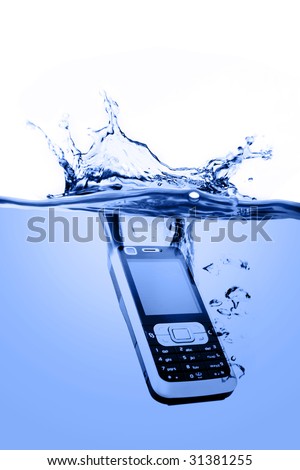
How to quickly repair your Mobile Phone dropped in water?

sivarama nityanandamurty     4:32 AM     No comments
Many of you get your mobile phone wet by one way or another. You worry as you mistakenly drop your mobile phone in water. It can also get wet if you are out in a heavy rain.  However, there is no need to panic. It is possible to save your wet mobile phone by quickly repairing it. In order to save your mobile phone from water damage, you can consider these easy and simple solutions:

 
Act rapidly :
The first thing you have to do in order to save your wet mobile phone is to act rapidly. Quickly remove all the detachable parts as well as covers possible such as the back cover, battery, the SIM card, memory card etc. Next, take a piece of cloth or a tissue paper to wipe the excess water you are able to notice within the mobile phone. Make sure that you dry it completely. If you don' t do this, the water inside the mobile phone will begin to evaporate and gather in places which will be difficult to reach. 
This will save your wet mobile phone and it will start working if it was under water for just a little while.
Using a hairdryer :
Take a hairdryer and begin drying the mobile phone while giving more consideration to the place where the battery is located. The battery housing usually consists of tiny holes to let in air (so giving more space for water) inside the mobile phone.
Make sure that you are not holding the hairdryer very near to the mobile phone. Keeping it too close to the mobile phone may harm the electrical mechanism of the mobile phone. Keep on drying the mobile phone from a safe distance for about twenty to thirty minutes.
If solution number 1 and solution number 2 don't work, try solution number 3. 
Drying for a long time:  
Take off the covers as well as battery from the mobile phone. Put the phone in a dry as well as warm place to let the water inside the phone evaporate gradually from the little holes in the mobile phone.

0 comments :

How to use Bluetooth technology to connect laptop and cell phone?

sivarama nityanandamurty     4:22 AM     No comments
 
We can use Bluetooth technology to connect laptop and cell phone. We can move videos, images, photos etc from a desktop computer or a laptop to our cell phones. In order to use Bluetooth technology to connect laptop and cell phone we need a laptop and a cell phone which support this technology.
If the laptop doesn't support it, we can use a USB Bluetooth dongle. Just plug it into the USB port of the desktop computer or laptop. Leave the rest to Microsoft Windows. It will find the driver and install it itself.  If it is not supported, we can manually install it via the manufacturer's compact disk. Follow these simple steps in order to use Bluetooth technology to connect laptop and cell phone: (In this example, we are using Windows Vista.)
 Turn on the Bluetooth feature on your cell phone.
 Make this setting:  my Phone's visibility -> Shown to all on the cell phone.
Open Bluetooth Devices by clicking on its icon in the Control Panel.
Look for the Bluetooth driver in the Device Manager and double-click on its icon.
Click on the Add button in Bluetooth Devices dialog box.
Check the box for "My devices is set up and ready to be found" in the Add Bluetooth Device Wizard dialog box.
Click on the Next button.
This device wizard will display the name of the found Bluetooth device close by.
Click on the device name that you would like to add and click on Next.
Select "Let me choose my own key" or "Choose a passkey for me" and click on Next.
It will now display the passkey. Key this into the cell phone. Now the laptop is initiating to install the Bluetooth device. (Click Yes as you see the prompt message on the cell phone to allow connection with the laptop.)
Click on the Finish button to close the dialog box of Add Bluetooth Device Wizard.
The Bluetooth device (the cell phone) is now displayed in Bluetooth Devices dialog box. Select the Bluetooth device and click on the Properties button.
The Properties dialog box for the device will become visible. Choose the Services tab.
Check the boxes for the services you want.
In the end you can launch the items of the cell phone.  Transfer photos, videos etc to cell phone via Bluetooth technology.
This method can also be used to connect laptop to Bluetooth devices like Bluetooth mouse, Bluetooth keyboard, Bluetooth headset, etc.

0 comments :

Utility to disable usb port only for pendrive in a computer?

sivarama nityanandamurty     3:25 AM     No comments
here is the simple trick that you can follow to restrict user from using pendrives to avoid virus risk.

To disable the access to USB port, in windows XP and 2000
1. Click Start, and then click Run.
2. In the Open box, type regedit, and then click OK.
3. Locate, and then click the following registry key:
HKEY_LOCAL_MACHINE\SYSTEM\CurrentContr…
4. In the right pane, double-click Start.
5. In the Value data box, type 4, click Hexadecimal (if it is not already selected), and then click OK.
6. Quit Registry Editor.

0 comments :

Monday, October 18, 2010

Making Windows 7 Your Own: Personalize and Themes

sivarama nityanandamurty     2:37 AM     No comments
There is more to owning a PC than just having one, whether its a laptop or desktop. With the many generic brands out there to choose from, its not unlikely for you to know someone who has an exact configuration and model as you do. Many PC OEM's have tried to differentiate their models with different finishes and form factors that make them stand out. Its one of the key aspects of WINTEL machines, there is definitely choice to be found and opportunities to customize. Consumers also have the choice of carrying their computer to an after market customization expert and have them do a custom paint job to add a bit more personality/style to a computer that defines them. Some high-end boutique vendors such as Falcon Northwest bundle that option as a part of their computer models.
What is a Theme?
A theme in Windows combines photos, sounds, color along with wallpaper background, sound scheme, screen saver and special icons/mouse pointer.
The personalization story gets much deeper when we enter the world of software and Windows 7 makes the experience even more interesting. Windows has for a long time included theming capabilities, probably as far back as the first version. Microsoft's first major overhaul of making Windows more customizable was with the release of Windows 95 in 1995 and the companion pack, Microsoft Plus! for Windows 95. This allowed customers to customize their PC experience with additional window themes, icons and sound schemes. Eventually, this was incorporated into Windows 98 and future releases. Windows XP released in 2001 introduced a bold experience called Luna, which featured thicker title bars with three optional colors called Blue, Olive and Silver. Some of the qualities of this theme include, large self explainable icons, rich in color and depth, bright vibrant wallpapers and overall richer palette of colors. Subsequent themes were released outside of Windows XP by Microsoft, such as a ZUNE theme, Royale introduced with the release Windows XP Tablet PC/Media Center 2005. Microsoft also released a companion update to Microsoft Plus! for Windows XP. Consumers described that release as offering little to be worth $39.
Display Properties Personalization Vista
With Windows Vista, Microsoft took another bold step, redesigning the Windows user experience now called AERO. Windows Vista introduced real life effects such as translucent windows, life like icons and a cleaner design that made using Windows daily a pleasure. Microsoft added numerous effects and color schemes for changing the color depth of Glass along with high quality wallpaper backgrounds. Microsoft also used Windows Vista as an opportunity to update the Display Properties dialog creating a new Explorer shell called Personalization. In this new interface, in which elements were categorized into different sections explaining what each does, users clicked a different link which led to a shell or dialog for customizing the Windows interface, whether it was Window color, Desktop background, Glass color, Screen Saver, Sound scheme etc.
Edition of Windows 7 Capabilities
Starter Aero Basic
Home Basic Aero Basic, Aero Standard
Home Premium Aero Basic, Aero Glass
Professional Aero Basic, Aero Glass
Enterprise Aero Basic, Aero Glass
Ultimate Aero Basic, Aero Glass
Windows 7 improves on this, by enhancing the layout for quicker access to elements, but also adding more options for theming the Windows interface and making Windows connect better with locals. Themes are now bundled packages that feature a collection of high resolution wallpapers and an assigned glass color. Of course, there are some additional changes for users upgrading from versions of Windows such as XP or as far back as Windows 2000 Professional. Lets discuss some more about the different aspects of the Windows 7 Personalization Explorer shell. To access it, right click your desktop, click Personalize.
 Personalize 1
Users should note, Windows 7 offers varied experiences depending on the capabilities of your hardware and the edition of Windows 7 you are using. Lets learn some more about these tier of capabilities:
Aero Standard
Windows Aero Standard - Combines some of the capabilities of Windows Aero Glass with some features of Aero Basic. Users will notice that window borders are more glass like in appearance, but do not have the option for translucency. The Taskbar is similar Aero Basic, except for the option of Thumbnail previews is now available.
Aero Glass
Windows Aero Glass - What some would call the crème de la crème, Aero Glass offers the ultimate user experience for Windows users. The Windows Aero Glass encompasses every aspect of the Windows desktop experience: Start menu, Desktop, Taskbar and Windows Explorer. The immediate differences users will note is the ability to have translucent glass windows and a Taskbar with powerful effects such as interactive thumbnail previews, ability to see running videos with the ability to hover them and see a full size preview. If you invoke the Alt+Tab command, you can also see a live preview of windows on the fly. Users can also customize the color of the windows with up 16 different colors to choose with the option of controlling the intensity of the window color itself.
In addition to these themes, Microsoft also provides different that are grouped as Basic and High Contrast themes.
Aero Basic
Windows Aero Basic - For computers that cannot support the minimum graphics requirements of Windows Aero Glass. Aero Basic features the standard elements of the Windows 7 interface except for the translucent effects and animations. Instead, areas such as the Taskbar, window borders display a blue/grayish color scheme. Other unavailable features include the inability to choose a Window Color, see and interact with thumbnail previews, Alt-Tab Preview, Flip 3D and Aero Peek.
Windows Classic - First introduced with Windows 95, this experience was the flagship theme for Windows for many years and was replaced by Windows XP's Luna in 2001 but is still included in Windows for persons who are not quite ready for the changes in Windows 7. Microsoft has made some changes to Windows Classic in Windows 7 where menus are concerned. The standard look and feel still exist, but Microsoft has decided to remove the Standard Classic Menu that was available as an option in both Windows XP and Vista. Personally, I agree with this, since the new Start menu offers so many benefits such as Instant Search, easier access to programs, better control (no cascading/off screen sub menus), ability to search HomeGroups, Public directories and detailed results when presented. The new Start menu also introduces support for features unique to Windows 7 such as Jump List providing access to task and recently accessed files associated with a program.
High Contrast
High Contrast themes - If you have difficulty reading or viewing your screen, Windows has for years included high-contrast color schemes that heightens the color contrast of some text and images on your computer, making those items more distinct and easier to identify.
System Requirements - To run Windows Aero Glass, you need appropriate hardware. The capabilities will vary depending on what you have installed, here is a list of suggested requirements from Microsoft:
  • 1 GHz CPU (processor) 32 or 64 bit
  • 1 GB of RAM
  • 128 MB video card
  • DirectX 9 compliant video card that supports Windows Display Driver Model 1.0 or later, Pixel Shader 2.0 in hardware, and 32 bits per pixel. (To find out if your card is DirectX 9 compliant, open the Run command (Windows key + R), type dxdiag. Under System Information, DirectX Version: you should see the version of DirectX
For best results, you might also want to follow these graphics processor recommendations:
  • 64 MB of graphics memory to support a single monitor with a resolution that is less than 1,310,720 pixels (for example, a 17-inch flat panel LCD monitor that has a 1280 x 1024 resolution)
  • 128 MB of graphics memory to support a single monitor with a resolution from 1,310,720 to 2,304,000 pixels (for example, a 21.1-inch flat panel LCD monitor that has up to a 1600 x 1200 resolution).
  • 256 MB of graphics memory to support a single monitor with a resolution greater than 2,304,000 pixels (for example, a 30-inch wide-screen flat panel LCD monitor that has up to a 2560 x 1600 resolution)
How do I personalize Windows 7?
Aero Background - You can easily turn your desktop into a slideshow of your favorite photos.
Choose Background
From the Personalization window, click Desktop Background
Desktop Backgroun
Choose the images you want to cycle and display on your screen. You have the option of choosing how long a picture is displayed on your screen.
-------------------------------
Glass Color - You can make your windows look the way you like with your favorite color. Windows 7 Color and Appearance now includes a total of 16 different colors to choose from.
Choose window color
From the Personalization window, click Windows Color
Windows Color
Choose the color you want. You also have the option of controlling the intensity of the color by using the Color Intensity slider. The transparency effects can optionally be turned off.
--------------------------------
Windows 7 bundles a set of 6 pre-packed themes for you to get started with, these include the default branded Windows 7 themes: Architecture, Characters, Landscapes, Nature and Scenes. The Windows Team went the extra mile with Windows 7 where themes and local cultures are related. Windows 7 offers themes tailored to different regions and languages, with special wallpapers, sounds and Aero Glass colors to provide a more locally relevant experience.
Sounds
The Sounds Area of Personalization includes a collection of 13 new sound schemes that are also related to the new Windows 7 bundled themes.
Windows 7 does not stop at what comes bundled on the installation disk, users can create their own Slide show themes and download additional ones from Microsoft’s Windows 7 website here Simply click a theme to Download and it will install your chosen theme. If you want to create your own theme and save it, learn more in the following Notebooks.com article here 
Personalization Gallery
You can download additional themes and backgrounds from the Windows 7 website
Themes are a great way to have fun with your PC and make it represent you and your experiences. Of course, you are not limited by what Microsoft provides, third party solutions are also available for you to customize the Windows interface to an even greater degree. StarDock Object Desktop which is partly responsible for the now defunct Windows Dreamscene once available to Windows Vista provides artistic themed interfaces for Windows, allowing you to change up your Windows experience as much as you like. You can learn more here So, don't be afraid to have fun with Windows 7 and change it up the way you like, as Microsoft says After all, it's yours.

0 comments :

Recommended

Like Us

Company

Related Posts Plugin for WordPress, Blogger...

Legal Stuff

FAQ's

Blogroll

Subscribe to Newsletter

We'll never share your Email address.
© 2015 TECHNOLOGY. Blogger Templates Designed by Bloggertheme9. Powered by Blogger.